

Hudson Screenshot
Capture, edit, and save screenshots in your browser.
Hudson Screenshot is free for Chrome and Firefox. From a small detail to a full page, capture what you need. Make a few edits, then save your image or copy it straight to your clipboard.
0.2.5 features: Available in Firefox now. Available in Chrome once its Chrome Web Store listing shows 0.2.5.
Firefox: desktop version 140 or newer.
A simple workflow
Choose your capture. Make it yours.
Firefox 0.2.5 screenshots. These features are available in Chrome once its store listing shows 0.2.5.
Five ways to capture
The right frame for every page.
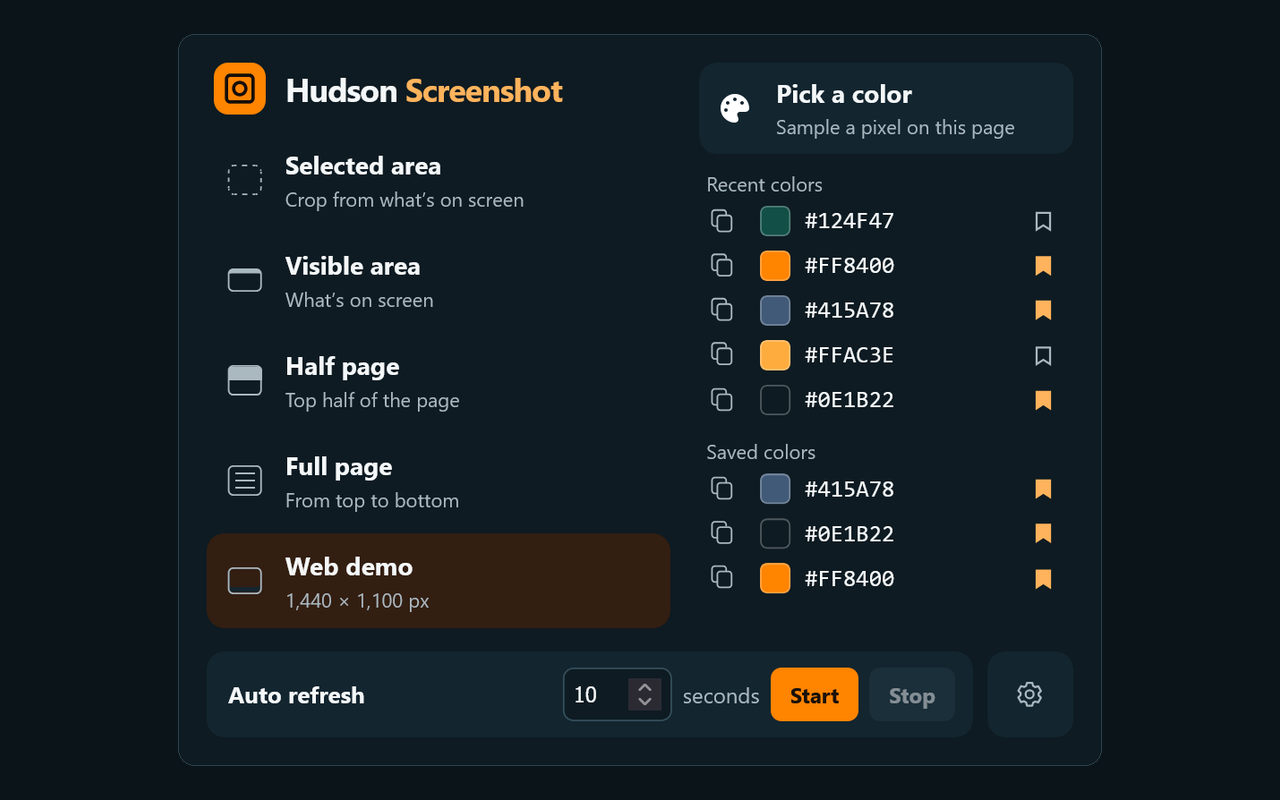
- Selected area
- Choose just the part of the page you need.
- Visible part
- Capture the part of the page currently in view.
- Top half
- Capture the top half of the page.
- Full page
- Capture the whole page, beyond the visible view.
- Web-demo image
- Create a 1,440 × 1,100 image for a web demo.
Finish in the editor
Small edits. Ready to share.
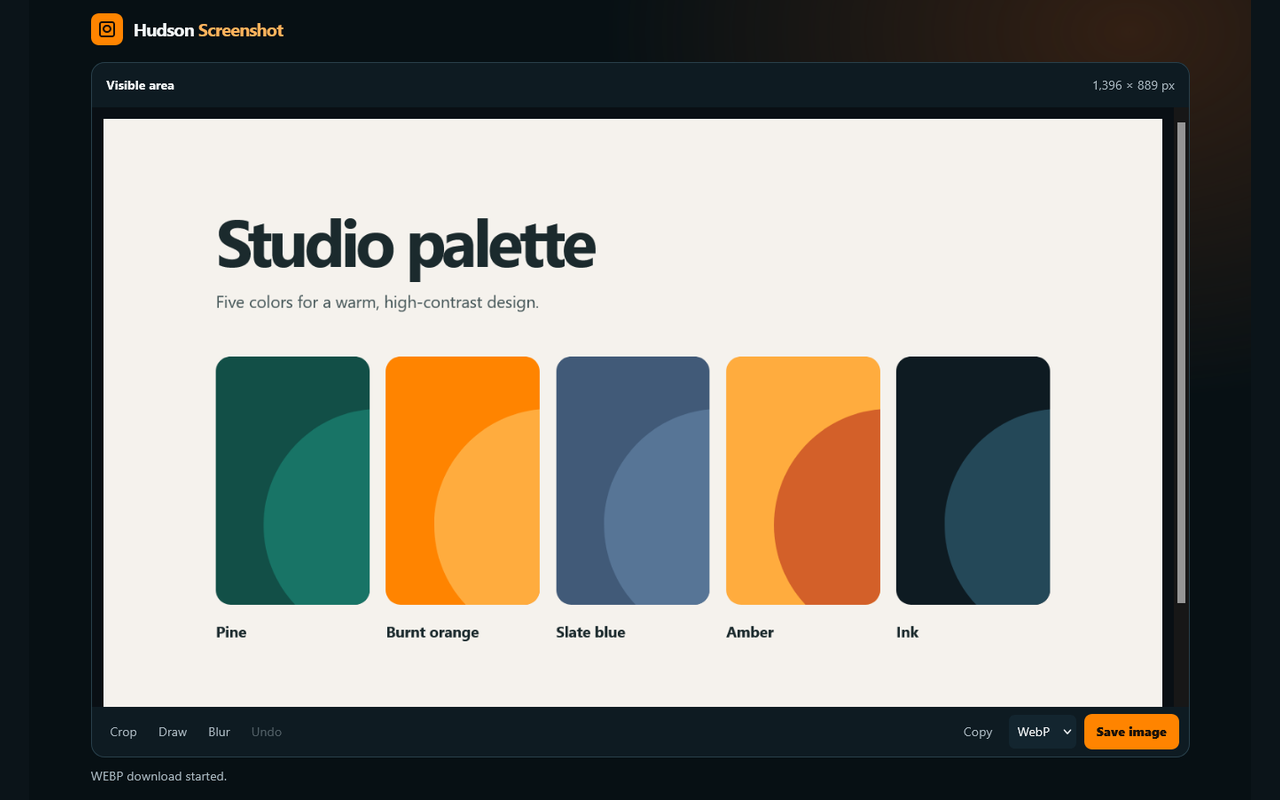
Crop to focus on a detail, draw to mark something up, or blur sensitive parts. Undo changes as you go, then copy the finished screenshot or save an image.
- Crop
- Draw
- Blur
- Undo
- Copy
Save as PNG or WebP
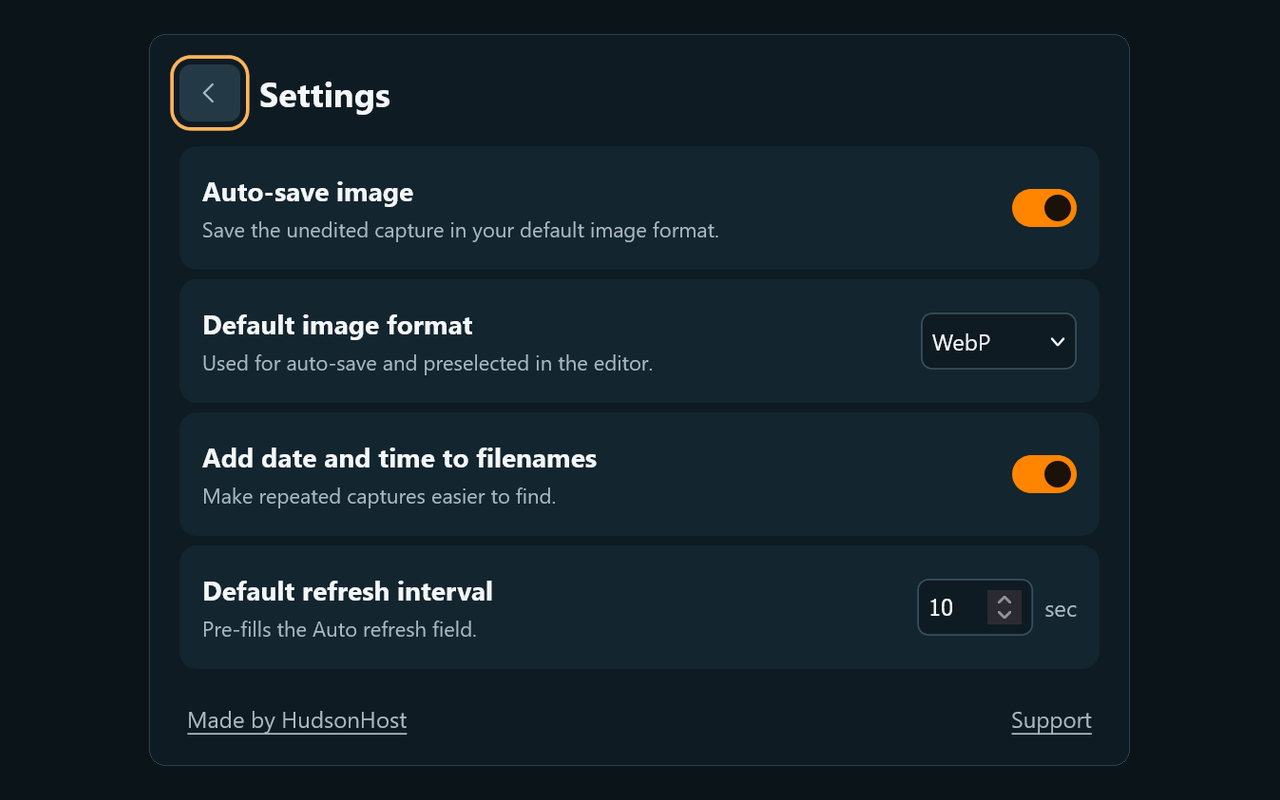
Copy screenshots as PNG, or save as PNG or WebP. In 0.2.5, choose your default image format in Settings; it is used for optional auto-save and preselected in the editor.
0.2.5 features · Color picker
Pick a color
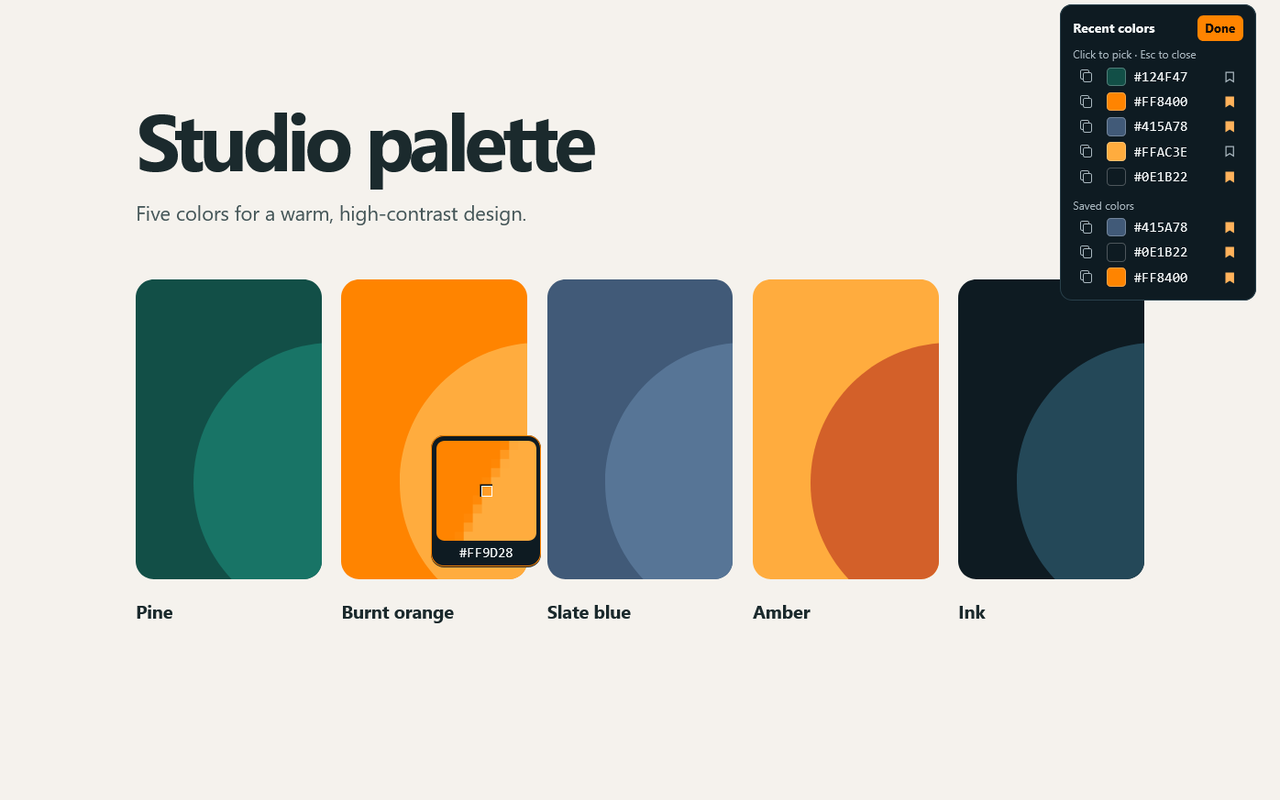
Choose Pick a color in the right-hand column of the Hudson Screenshot menu. Move the crosshair over the visible page, then click a pixel to save its hex value.
Zoom in on the exact pixel
The rounded magnifier shows the pixels under the crosshair, with a readable hex value. Keep up to five recent colors and up to three saved colors. Copy a hex code or save a color for reuse from the vertical lists.
Select Done or press Esc to close the picker.
0.2.5 features
A simpler menu. Settings that suit you.
Two-column menu
Choose a capture mode in the left column. Pick a color, review five recent colors, or reuse three saved colors in the right column.
Optional auto-save
Enable Auto-save image in Settings to download the unedited capture automatically. Choose PNG or WebP as your default image format.
Auto refresh
Use Auto refresh to reload the tab you select after you choose Start. The default interval is 10 seconds; change it in the menu or configure the default in Settings. Choose Stop to end refreshing.
These 0.2.5 features are available in Firefox now, and in Chrome once its store listing shows 0.2.5.
Your screenshots and recent colors stay on your device.
Hudson Screenshot uses temporary access to the browser tab you choose. It has no analytics and does not send screenshots, sampled colors, page content, or browsing history to HudsonHost or third parties.
Need a hand? Visit the HudsonHost Help Center.